找到
7
篇与
导入
相关的结果
-
 移植 Material Design 3 色彩系统的 UTS 插件(uniapp/uniappx) Material Design 3(简称 M3)是 Google 推出的最新设计语言,它提供了更加动态和个性化的色彩系统,帮助开发者构建美观且一致的用户界面。kh-material-color专为 uniapp UTS 插件开发的 Material Design 3 色彩系统移植版本。支持 uniapp、uniappx。 官方 Material Design 3 色彩系统文档:https://m3.material.io/styles/color/ 插件功能 在跨平台开发中,保持设计一致性是一项挑战。Uniapp 作为流行的跨端框架,结合 UTS 插件系统,为开发者提供了强大的原生扩展能力。kh-material-color 功能为将 Material Design 3 的色彩系统无缝集成到 uniapp 项目中,让你能够轻松应用 M3 的动态色彩方案,无论是浅色模式还是深色模式。 主要特性 完整的 M3 色彩支持:基于官方规范,提供所有核心色彩角色。 动态色彩生成:通过种子颜色自动生成协调的色彩方案。 深色/浅色模式支持:一键切换,适配不同主题需求。 简单易用的 API:几行代码即可集成到现有项目。 类型安全:使用 TypeScript 定义,提供完整的类型提示。 支持的颜色方案 kh-material-color 插件导出了 MaterialScheme 类型,包含了 Material Design 3 中的所有关键色彩角色。以下是完整的色彩映射: export type MaterialScheme = { primary: string onPrimary: string primaryContainer: string onPrimaryContainer: string secondary: string onSecondary: string secondaryContainer: string onSecondaryContainer: string tertiary: string onTertiary: string tertiaryContainer: string onTertiaryContainer: string error: string onError: string errorContainer: string onErrorContainer: string background: string onBackground: string surface: string onSurface: string surfaceVariant: string onSurfaceVariant: string surfaceContainerHighest: string surfaceContainerHigh: string surfaceContainer: string surfaceContainerLow: string surfaceContainerLowest: string inverseSurface: string inverseOnSurface: string surfaceTint: string surfaceTintColor: string outline: string outlineVariant: string }这些色彩角色覆盖了界面中的所有元素,从主要按钮到背景、表面和轮廓,确保设计的一致性。 颜色演示 浅色模式深色模式颜色演示1图片颜色演示2图片快速开始 步骤 1:安装插件 kh-material-color 点击链接,进入插件市场直接导入安装。 步骤 2:引入插件 在需要使用色彩方案的页面或组件中,导入 generateMaterialScheme 函数: import { generateMaterialScheme } from '@/uni_modules/kh-material'步骤 3:设置种子颜色和主题模式 定义种子颜色和主题模式(浅色或深色)。种子颜色是生成整个色彩方案的基础: // 设置 Material Design 颜色方案的种子颜色 const seedColor = ref('#6750A4') // 默认 Material Design 紫色 // 是否为暗色模式 const isDark = ref(false) // 默认浅色模式步骤 4:生成色彩方案 使用 generateMaterialScheme 函数生成色彩方案。你可以将其包装在计算属性中以实现响应式更新: // 生成 Material Design 颜色方案 const materialScheme = generateMaterialScheme({ seedColor: seedColor.value, isDark: isDark.value }) // 或者,动态计算 Material Design 颜色方案 const scheme = computed(() => { return generateMaterialScheme({ seedColor: seedColor.value, isDark: isDark.value }) })参数说明 参数可空说明seedColor是种子颜色,用于生成整个色彩方案。默认值为 #6750A4(Material Design 标准紫色)。isDark是是否为暗色模式。默认值为 false(浅色模式)。步骤 5:在模板中使用色彩方案 在模板中,你可以直接通过点操作符或下标访问色彩角色: <template> <view class="container"> <!-- 使用点操作符访问 --> <view class="surface-box" :style="{ backgroundColor: scheme.surface }" > <text :style="{ color: scheme.onSurface }"> 这是一个表面容器 </text> </view> <!-- 或者使用下标访问 --> <view class="primary-box" :style="{ backgroundColor: scheme['primaryContainer'] }" > <text :style="{ color: scheme['onPrimaryContainer'] }"> 主要内容 </text> </view> <!-- 动态切换深色/浅色模式示例 --> <button @click="toggleTheme">切换主题</button> </view> </template>脚本部分: <script setup> import { ref, computed } from 'vue' import { generateMaterialScheme } from '@/uni_modules/kh-material' const seedColor = ref('#6750A4') const isDark = ref(false) const scheme = computed(() => { return generateMaterialScheme({ seedColor: seedColor.value, isDark: isDark.value }) }) const toggleTheme = () => { isDark.value = !isDark.value } </script>总结 kh-material-color 插件为 uniapp/uniappx 开发者提供了一个强大而灵活的工具,以遵循 Material Design 3 规范的方式管理应用色彩。通过简单的 API,你可以快速生成动态色彩方案,并轻松适应深色和浅色模式。 无论你是构建全新的应用,还是希望将现有项目升级到 Material Design 3,这个插件都能节省大量时间,并确保设计的一致性。 如果你有任何问题或反馈,欢迎在博客或插件市场留言。 支持与赞赏 如果你觉得本插件解决了你的问题,可以考虑支持作者: 支付宝赞助微信赞助支付宝赞助图片微信赞助图片相关链接 Material Design 3 官方文档 Uniapp 官网 UTS 插件开发文档
-
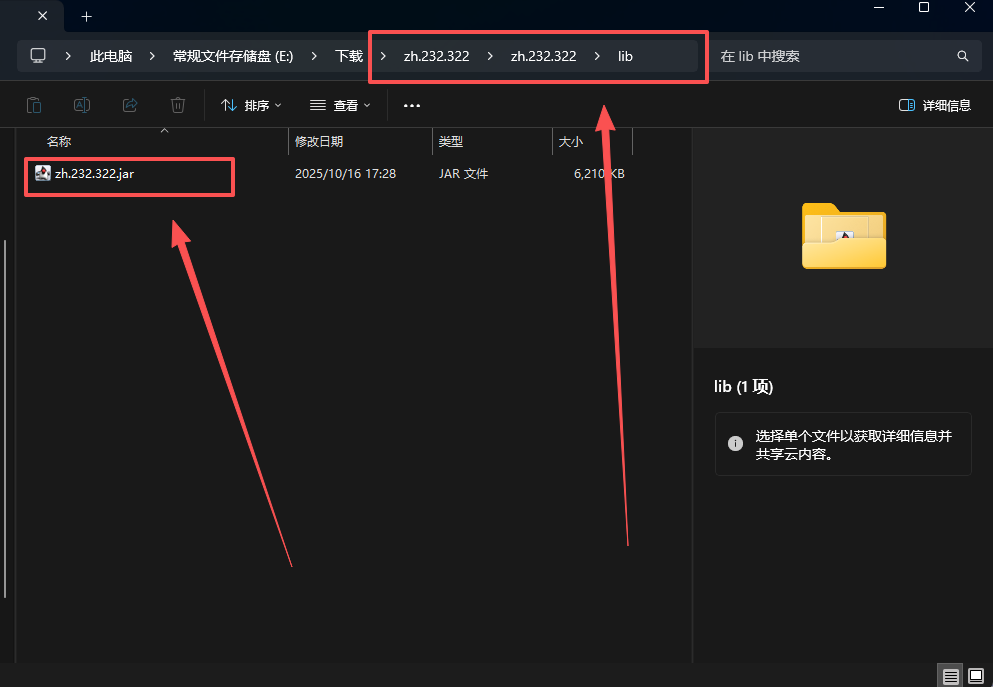
Android Studio最新版汉化教程(2025年10月17日) 下载语言包插件 Android Studio没有官方的中文语言包,使用IntelliJ的代替 点击下载 修改插件信息 解压压缩包 打开文件夹,向下寻找,找到lib文件夹下的jar包 lib文件夾图片 解压jar包 找到META-INFO文件夹并打开 META-INFO文件夾图片 打开plugin.xml文件 修改版本号为你的Android Studio版本号 修改版本号图片 保存文件,并将解压出来的所有文件重新打包为zip 重新打包为zip图片 修改压缩包zip后缀为jar 修改后缀名图片 安装插件 打开Android Studio,选择从磁盘安装语言包插件 安装语言包图片 打开设置,搜索lang,找到Language and Region,修改语言为中文 修改语言图片 重启Android Studio即可 修改完成图片 参考内容 Android Studio 中文汉化教程 android studio导入中文包
-
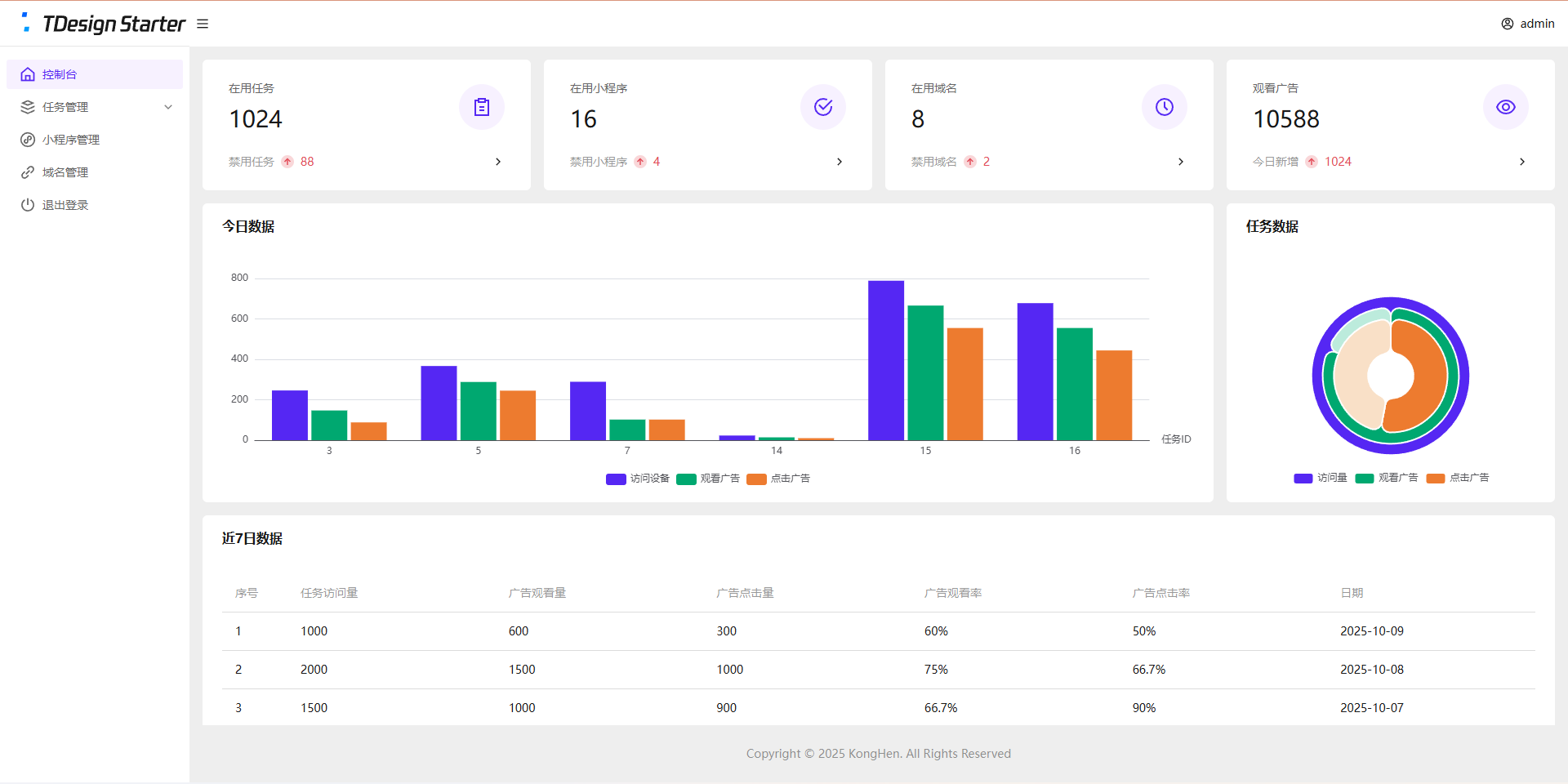
全新任务管理平台(流量主变现系统)开源 项目简介 项目结构 接口管理:PHP + Mysql 后台管理系统:Vue3 + ts + TDesign 任务单页:Vue3 小程序:uniapp + Vue2 变现说明 基础流程: 后台创建任务 复制任务链接 分享到社群或私域 用户打开任务页面 跳转到小程序观看广告 观看广告 下发奖励 收入说明 微信小程序官方广告收入 其他推广/广告收入 支持的奖励类型 链接奖励(适用于下载链接、付费文章等) 文本奖励(适用于通用卡密、密钥等) 卡密奖励(适用于一次性卡密) 系统演示 演示站点 空痕任务管理系统 后台数据为静态演示数据,无法更改 演示图片 管理后台 控制台图片 任务单页 任务单页图片 小程序 小程序图片 安装教程 管理后台 安装依赖 npm install 构建项目 npm run build 新建站网站及数据库 推荐:PHP 8.0 推荐:Mysql 5.7 开启SSL(必须) 配置伪静态 location / { try_files $uri $uri/ /index.html; } location /api/ { if (!-e $request_filename) { rewrite ^/(.*)$ /$1.php last; } } 配置跨域 配置跨域教程 请参考第1种解决方法 导入数据库 导入/后台/数据库/task_dev_xma_run.sql到Mysql数据库 修改/后台/api/config.php 管理账户密码 JWT配置(密钥、过期时间) 数据库配置 上传后台代码 上传/后台/dist目录中的全部文件到网站根目录 上传/后台/api目录到网站根目录 任务单页 安装依赖 npm install 修改/任务单页/src/App.vue中的接口信息 修改后台地址 修改视频教程地址 构建项目 npm run build 新建网站 静态网站 开启SSL(必须) 上传任务单页代码 上传/任务单页/dist目录中的全部文件到网站根目录 小程序 使用HbuildX打开小程序 在manifest.json中获取新AppID 修改/pages/user/view中的后台地址 修改/pages/user/work中的二维码 发行到微信小程序 在微信开发者工具中上传代码 登录微信小程序后台配置 配置request合法域名 https://task.dev.xma.run(更改为自己的后台地址) https://www.duitang.com 配置downloadFile合法域名 https://c-ssl.duitang.com 配置明文scheme拉起此小程序 pages/user/view;pages/user/work 代搭建/教学 请联系微信:KongHen02 项目地址 GitHub
-
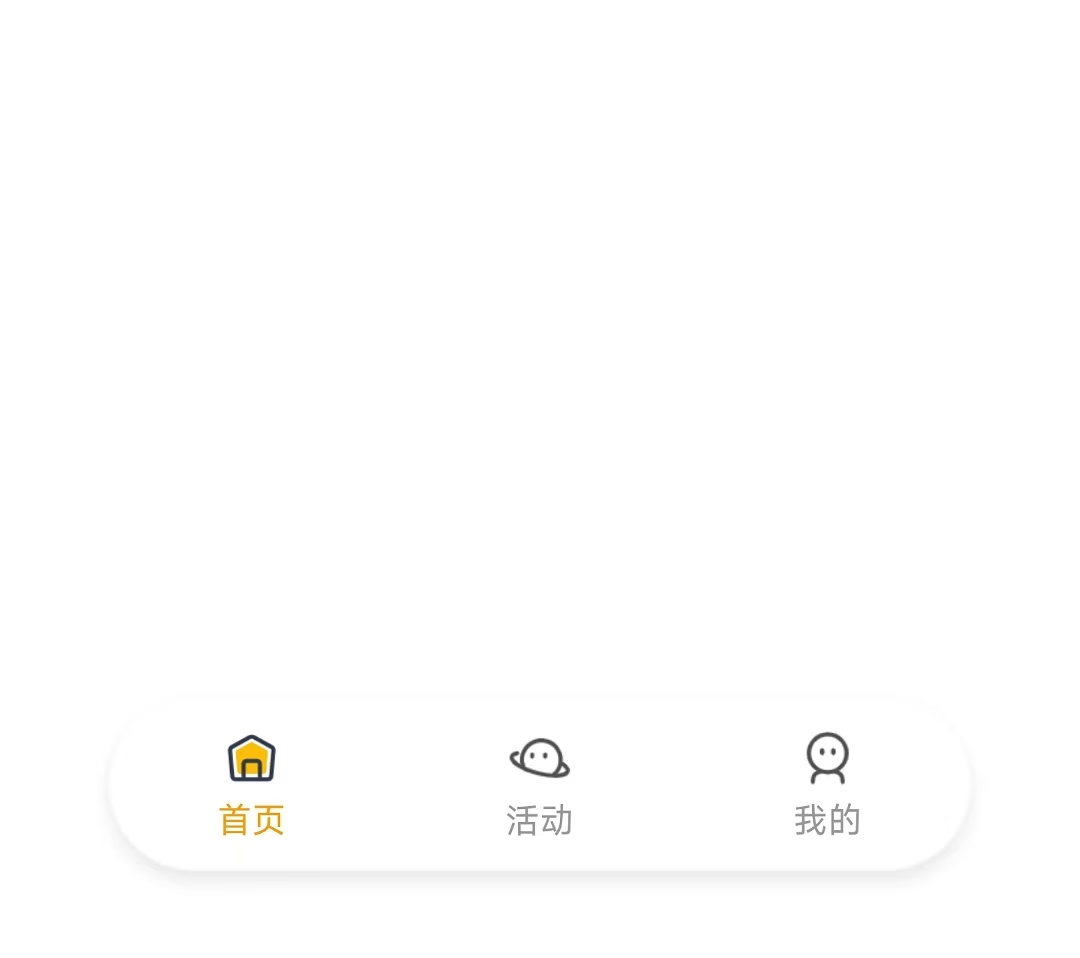
uniapp-x实现自定义tabbar uniapp-x自带导航栏位置固定,且UI无法修改。如果需要适配自己的应用UI及色彩就需要自定义tabbar。 实现说明 将tabbar写入主页面,需要显示的页面作为组件引入。 示例样式 演示示例图片 实现方法 使用swiper实现 说明: 所有页面一次性加载 允许左右滑动 优点:允许滑动切换,用户体验升级 演示代码 <template> <!-- 页面内容区域 --> <swiper style="flex: 1;" :current="selectedIndex" @change="swiperChange"> <swiper-item item-id="index"> <IndexPage></IndexPage> </swiper-item> <swiper-item item-id="more"> <MorePage></MorePage> </swiper-item> <swiper-item item-id="user"> <UserPage></UserPage> </swiper-item> </swiper> <!-- tabber区域 --> <view class="tab-bar-container"> <view v-for="(item, index) in tabList" class="tab-bar-item" @click="switchTab(index)"> <image class="tab-bar-icon" :src="(selectedIndex === index ? item.s_icon : item.icon)"></image> <text class="tab-bar-text" :style="'color:' + (selectedIndex === index ? '#F59E0B' : '#999999') +';'">{{ item.name }}</text> </view> </view> </template> <script setup lang="uts"> // 导入页面 import IndexPage from "./tabbar/index.uvue" import MorePage from "./tabbar/more.uvue" import UserPage from "./tabbar/user.uvue" // tabbar接口类型 type TabInfo = { name : string, icon : string, s_icon : string } // 页面列表 const tabList = reactive<TabInfo[]>([ { name: "首页", icon: "/static/tabbar/home.png", s_icon: "/static/tabbar/home_selected.png" }, { name: "活动", icon: "/static/tabbar/more.png", s_icon: "/static/tabbar/more_selected.png" }, { name: "我的", icon: "/static/tabbar/user.png", s_icon: "/static/tabbar/user_selected.png" } ]) // 选中的页面 const selectedIndex = ref<number>(0) // swiper切换 const swiperChange = (e: UniSwiperChangeEvent) => { let index = e.detail.current if (selectedIndex.value === index) return selectedIndex.value = index } // 页面切换 const switchTab = (index : number) => { if (selectedIndex.value === index) return selectedIndex.value = index } </script> <style lang="scss"> .tab-bar-container { position: fixed; bottom: 60rpx; width: 80%; left: 10%; z-index: 999; display: flex; flex-direction: row; justify-content: space-around; height: 120rpx; border-radius: 60rpx; box-shadow: 0 4rpx 20rpx rgba(0, 0, 0, 0.1); background: rgba(255, 255, 255, 0.4); } .tab-bar-item { display: flex; flex-direction: column; align-items: center; justify-content: center; padding: 15rpx 40rpx; } .tab-bar-icon { width: 44rpx; height: 44rpx; margin-bottom: 8rpx; } .tab-bar-text { font-size: 24rpx; } </style>官方示例 说明: 单次只加载一个页面 加载成功后使用v-show控制显示/隐藏,不重复加载(官方使用CSS属性visibility控制,测试不行) 优点:分页加载,减小单次加载压力(如果页面DOM多的话) 演示代码 <template> <!-- 页面内容区域 --> <view style="flex: 1;"> <IndexPage v-if="tabList[0].init" v-show="selectedIndex==0"></IndexPage> <MorePage v-if="tabList[1].init" v-show="selectedIndex==1"></MorePage> <MorePage v-if="tabList[2].init" v-show="selectedIndex==2"></MorePage> </view> <!-- tabber区域 --> <view class="tab-bar-container"> <view v-for="(item, index) in tabList" class="tab-bar-item" @click="switchTab(index)"> <image class="tab-bar-icon" :src="(selectedIndex === index ? item.s_icon : item.icon)"></image> <text class="tab-bar-text" :style="'color:' + (selectedIndex === index ? '#F59E0B' : '#999999') +';'">{{ item.name }}</text> </view> </view> </template> <script setup lang="uts"> // 导入页面 import IndexPage from "./tabbar/index.uvue" import MorePage from "./tabbar/more.uvue" import UserPage from "./tabbar/user.uvue" // tabbar接口类型 type TabInfo = { init: boolean, name : string, icon : string, s_icon : string } // 页面列表 const tabList = reactive<TabInfo[]>([ { init: true, name: "首页", icon: "/static/tabbar/home.png", s_icon: "/static/tabbar/home_selected.png" }, { init: false, name: "更多", icon: "/static/tabbar/more.png", s_icon: "/static/tabbar/more_selected.png" }, { init: false, name: "我的", icon: "/static/tabbar/user.png", s_icon: "/static/tabbar/user_selected.png" } ]) // 选中的页面 const selectedIndex = ref<number>(0) // 页面切换 const switchTab = (index : number) => { if (selectedIndex.value === index) return if (!tabList[index].init) { tabList[index].init = true } selectedIndex.value = index } </script> <style lang="scss"> .tab-bar-container { position: fixed; bottom: 60rpx; width: 80%; left: 10%; z-index: 999; display: flex; flex-direction: row; justify-content: space-around; height: 120rpx; border-radius: 60rpx; box-shadow: 0 4rpx 20rpx rgba(0, 0, 0, 0.1); background: rgba(255, 255, 255, 0.4); } .tab-bar-item { display: flex; flex-direction: column; align-items: center; justify-content: center; padding: 15rpx 40rpx; } .tab-bar-icon { width: 44rpx; height: 44rpx; margin-bottom: 8rpx; } .tab-bar-text { font-size: 24rpx; } </style>其他方法 使用share-element组件实现 复制官方代码,偶先切换页面组件闪动问题。官方uniapp-xapp的demo测试正常,不知道申明原因。 使用components组件+share-element组件实现的tabbar组件实现,tabbar组件会出现与页面移入方向反向滑动的动画 share-element文档 静态资源 tabbar图标(png) 下载地址:https://www.khkj6.com/usr/uploads/2025/08/2337268233.zip 提取码:
-
php利用redis实现接口数据缓存 php利用redis实现服务端数据缓存。 要求php版本大于8.0 缓存类 文件RedisCache.php <?php /** * 请求缓存类 * 利用redis实现数据缓存 * * 作者:KongHen02 * */ class RedisCache { private string $key; private Redis $redis; public function __construct(int $db = 0, bool $device = false) { $config = [ 'host' => '127.0.0.1', 'port' => 6379, 'timeout' => 2, 'database' => $db ]; try { $this->redis = new Redis(); $this->redis->connect( $config['host'], $config['port'], $config['timeout'] ); $this->redis->select($config['database']); } catch (RedisException $e) { error_log("Redis连接失败: " . $e->getMessage()); throw new RuntimeException("缓存服务不可用"); } $this->key = $this->generateKey($device); } public function getCache(): mixed { try { header('X-Cache: ' . ($this->redis->exists($this->key) ? 'HIT' : 'MISS')); $data = $this->redis->get($this->key); return $data !== false ? unserialize($data) : null; } catch (RedisException $e) { error_log("读取缓存数据失败: " . $e->getMessage()); return null; } } public function setCache(mixed $data, int $ttl = 7200): bool { try { return $this->redis->setex( $this->key, $ttl, serialize($data) ); } catch (RedisException $e) { error_log("写入缓存数据失败: " . $e->getMessage()); return false; } } public function __destruct() { try { $this->redis?->close(); } catch (RedisException $e) { error_log("关闭Redis连接失败: " . $e->getMessage()); } } private function generateKey(bool $device): string { $url = $_SERVER['HTTP_HOST']; $urlArray = explode("?", $_SERVER['REQUEST_URI']); $url .= $urlArray[0]; $params = $_POST; ksort($params); $keyParts = [ $_SERVER['REQUEST_METHOD'], $device ? $this->detectDevice() : null, $url, substr(md5($urlArray[1]), 0, 8), substr(md5(http_build_query($params)), 0, 8) ]; return implode(':', array_filter($keyParts)); } private function detectDevice(): string { $ua = strtolower($_SERVER['HTTP_USER_AGENT'] ?? ''); return match(true) { (bool)preg_match('/mobile|android|iphone|ipod|windows phone/', $ua) => 'mobile', (bool)preg_match('/tablet|ipad|kindle/', $ua) => 'tablet', default => 'desktop' }; } } ?>使用说明 <?php // 导入缓存类 require_once($_SERVER['DOCUMENT_ROOT'] . "/RedisCache.php"); try { // 0:redis表序;0-15;必填 // true:是否区分客户端类型(手机/平板/电脑);true/false(默认);可空 $RedisCache = new RedisCache(0, true); if (($result = $RedisCache->getCache()) !== null) { exit($result); } } catch (RuntimeException $e) { // 缓存服务不可用时继续执行 header('X-Cache-Status: Down'); } // 业务逻辑处理 $result = "数据内容,不限制类型"; // 缓存成功结果 if (isset($result)) { // $result:需要缓存的数据;mixed;必填 // 7200:数据有效期;int(默认7200);可空 $RedisCache?->setCache($result, 7200); } echo($result); ?>